 Workflows
Email automation workflows
tinyEmail workflows send automated emails when a customer does something, such as signing up, buying or joining a segment. Start from a pre-built template, like a welcome series or abandoned cart, then add delays, conditional splits, tags and audience changes in a visual editor. No code required.
 Pre-built templatesVisual editorStats on every step
 Workflow library
Which automated emails should you start with?
Start from a pre-built template, such as welcome or abandoned cart, or build any of these in the editor.
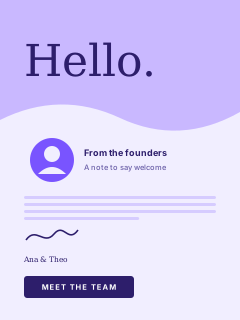 Template
Welcome series
Starts when someone signs up through one of your forms.
- Welcome emailRight away
- Wait2 days
- Your brand story
- Wait3 days
- Best sellers
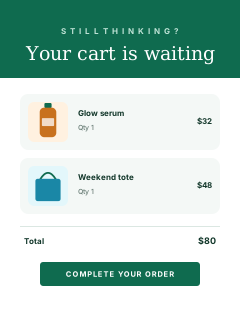 Template
Abandoned cart
Starts when a shopper leaves items in their cart.
- Wait1 hour
- Cart reminder
- Wait1 day
- Second reminder
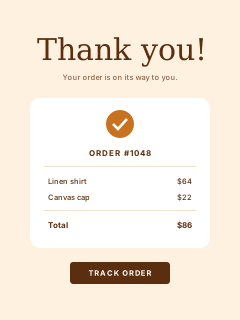
Post-purchase thank you
Starts when a customer places an order.
- Thank-you emailRight away
- Wait7 days
- Ask for a review
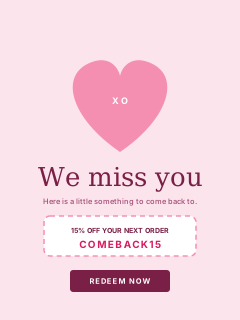
Win-back
Starts when a customer joins the Inactive customers segment (no order in 180 days).
- We miss youRight away
- Wait5 days
- Split: opened?
- Last-chance emailIf not
Re-engage subscribers
Starts when a subscriber joins the Dormant subscriber segment (no opens in 90 days).
- Check-in emailRight away
- Wait7 days
- Remove from audienceIf no open
 Coming soon
Browse abandonment
Starts when a shopper views products but does not add them to the cart.
- Coming soon to tinyEmail
Timings are examples. Change any delay, email or condition in the editor.
 Building blocks
What can an automated email workflow do?
Everything in the editor palette, grouped the way the app groups it.

Triggers
- Signs up through a form
- Makes a purchase
- Clicks an email
- Joins an audience or segment

Actions
- Send an email
- Add to an audience
- Remove from an audience
- Add a tag
- SMSComing soon
- WebhookComing soon

Timing
Add a time delay between any two steps, so each email lands at the right moment.

Logic
Split the path with a condition, such as whether someone opened an email or what they have bought before.
 Run and measure
How do you keep workflows performing?
Every workflow shows how many people entered and what each email did.

Stats on every step
Sent, opened and clicked on each email, plus open, click, spam and unsubscribe rates for the whole workflow.

Edit, clone, pause
Copy a workflow that works, pause one for a sale, or switch it back on in a click.

Allow re-entry
Decide whether someone can go through a workflow more than once.


 Segments + workflows
Can a segment start a workflow?
Yes. When a contact joins an audience or segment, a workflow can start for them, so the right journey begins at the right moment.

28 ready-made segments
New sign-ups, frequent buyers, dormant subscribers and more.

Conditions inside the flow
Split by purchase history or by what someone opened.
 FAQ
FAQEmail automation questions
Can't find your answer? Our team is here 24/7.
 Talk to support
 All FAQs
What is email automation?
Email automation sends emails for you when a customer does something, such as signing up, buying or going quiet. You build it once as a workflow and it runs on its own.
Which workflows should I set up first?
Most stores start with a welcome series and an abandoned cart workflow, then add a post-purchase thank you and a win-back for customers who have stopped buying.
How long should an abandoned cart workflow wait?
You choose the delay. A common pattern is a first reminder within a few hours and a second about a day later. Test what works for your store.
Can workflows send SMS or call a webhook?
Not yet. SMS and Webhook actions are coming soon. Today workflows send emails, add or remove people from audiences and add tags.
What happens to my Automations?
Automations are moving to Workflows. Workflows do the same jobs with more control, such as delays, conditional splits and stats on every step.
Is it free for Shopify stores?
Yes. tinyEmail is free for Shopify stores. Everyone else gets a 7-day free trial, then pays per email sent.

Put your best emails on autopilot
Free for Shopify stores. Everyone else gets a 7-day free trial, then pays per email sent.
